
App Settings
Access Tokens
Manage your personal access tokens used to authenticate API requests for sending notifications.
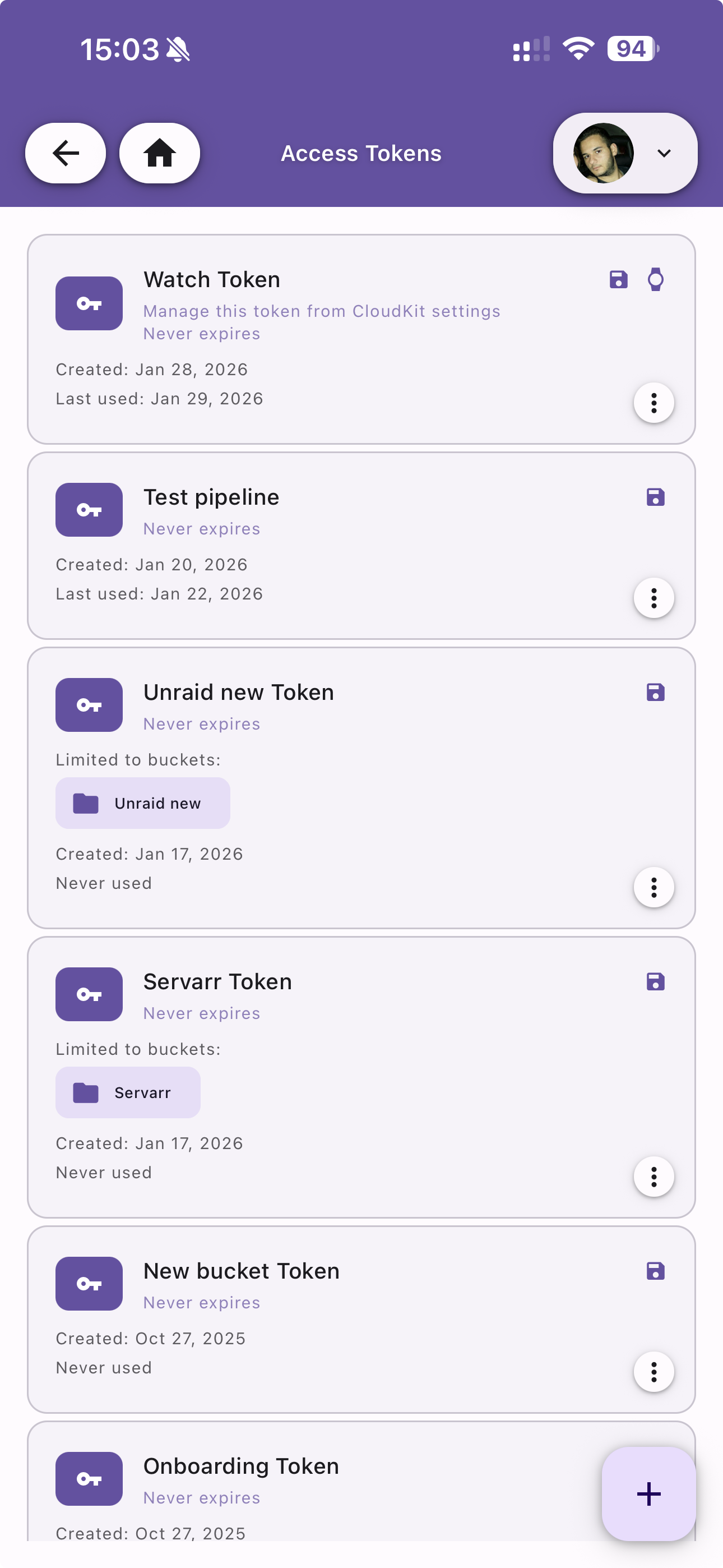
Token List
View all your access tokens. Each token shows:
- Token name — Descriptive name for the token
- Expiration — Whether the token expires or is permanent
- Limited to buckets — If scoped, shows the associated bucket chips
- Created date — When the token was created
- Last used — Most recent usage date
Tap the menu icon on each token to copy, edit, or revoke it. Use the + button to create a new token.
Note: The Watch Token is managed from the Watch & iCloud settings and cannot be edited here.
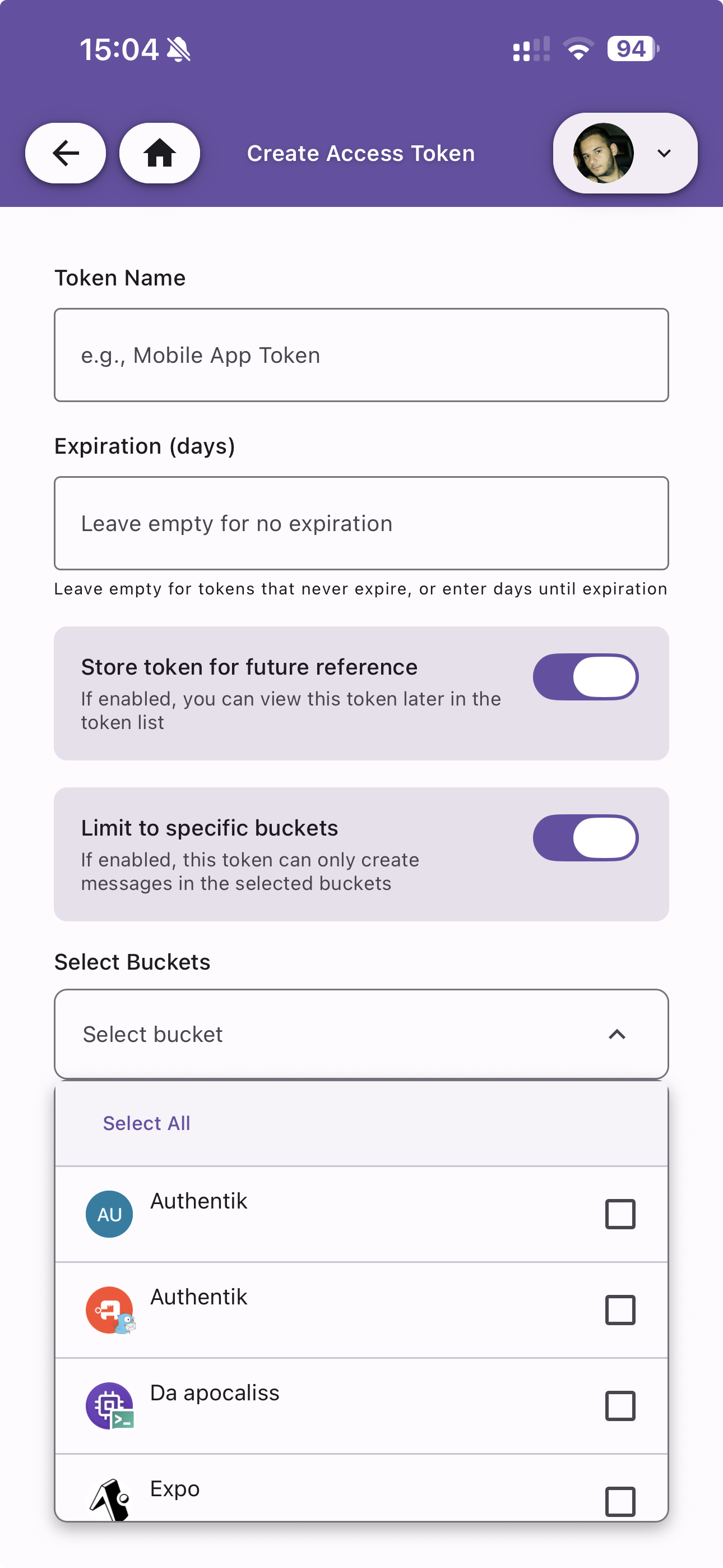
Create Access Token
Generate a new access token with the following options:
| Field | Description |
|---|---|
| Token Name | A descriptive name to identify the token |
| Expiration (days) | Number of days until the token expires. Leave empty for a token that never expires |
| Store token for future reference | When enabled, the token is saved and visible in the token list. When disabled, it is shown only once at creation |
| Limit to specific buckets | When enabled, the token can only send messages to the selected buckets. When disabled, it has access to all buckets |
Bucket Selection
When Limit to specific buckets is enabled, select one or more buckets from the list. Use Select All to grant access to all existing buckets.