
Buckets
Manage your notification buckets — create, edit, share, and configure them from the settings panel.
Bucket List
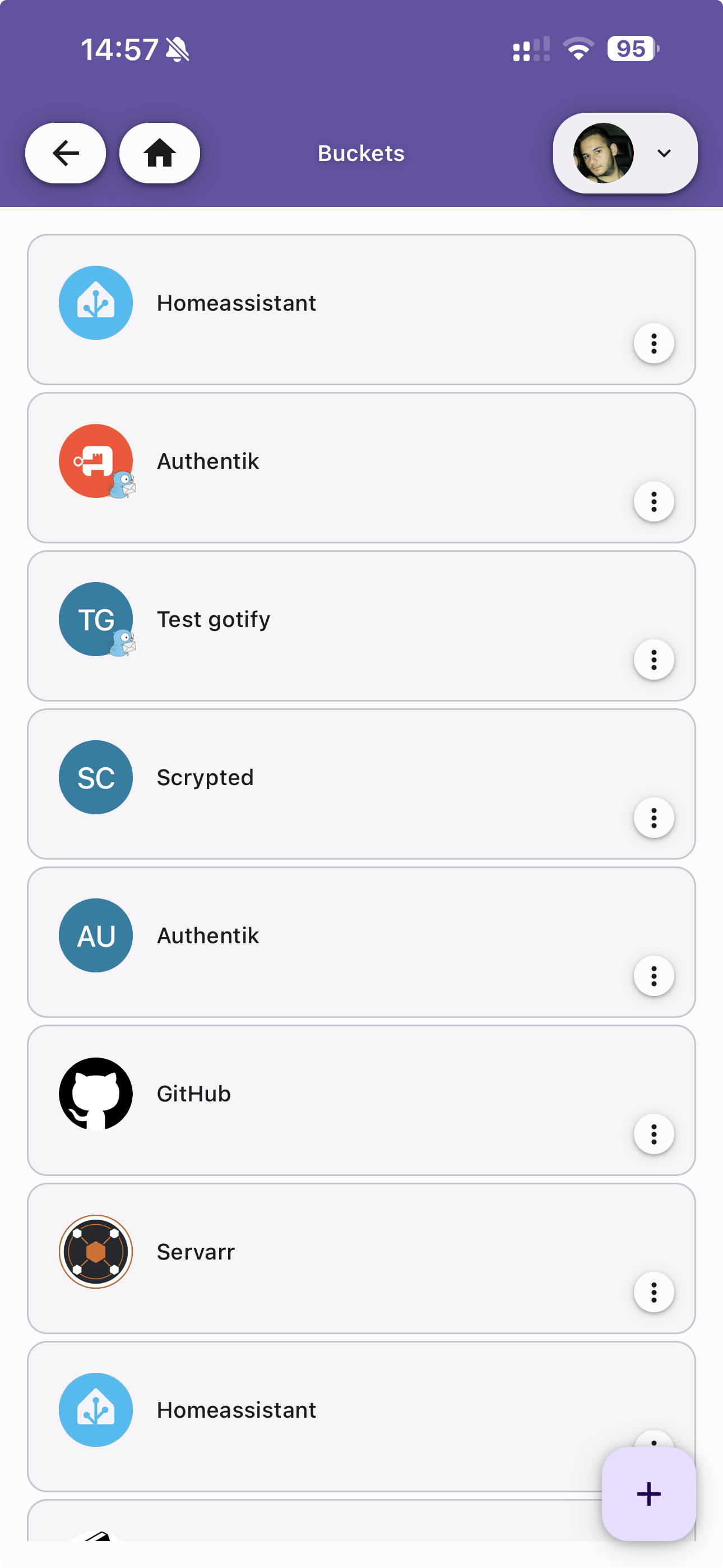
View all your buckets in a scrollable list. Each bucket displays its icon (with color and initials), name, and a menu for quick actions. Tap a bucket to open its edit screen.
Create New Bucket
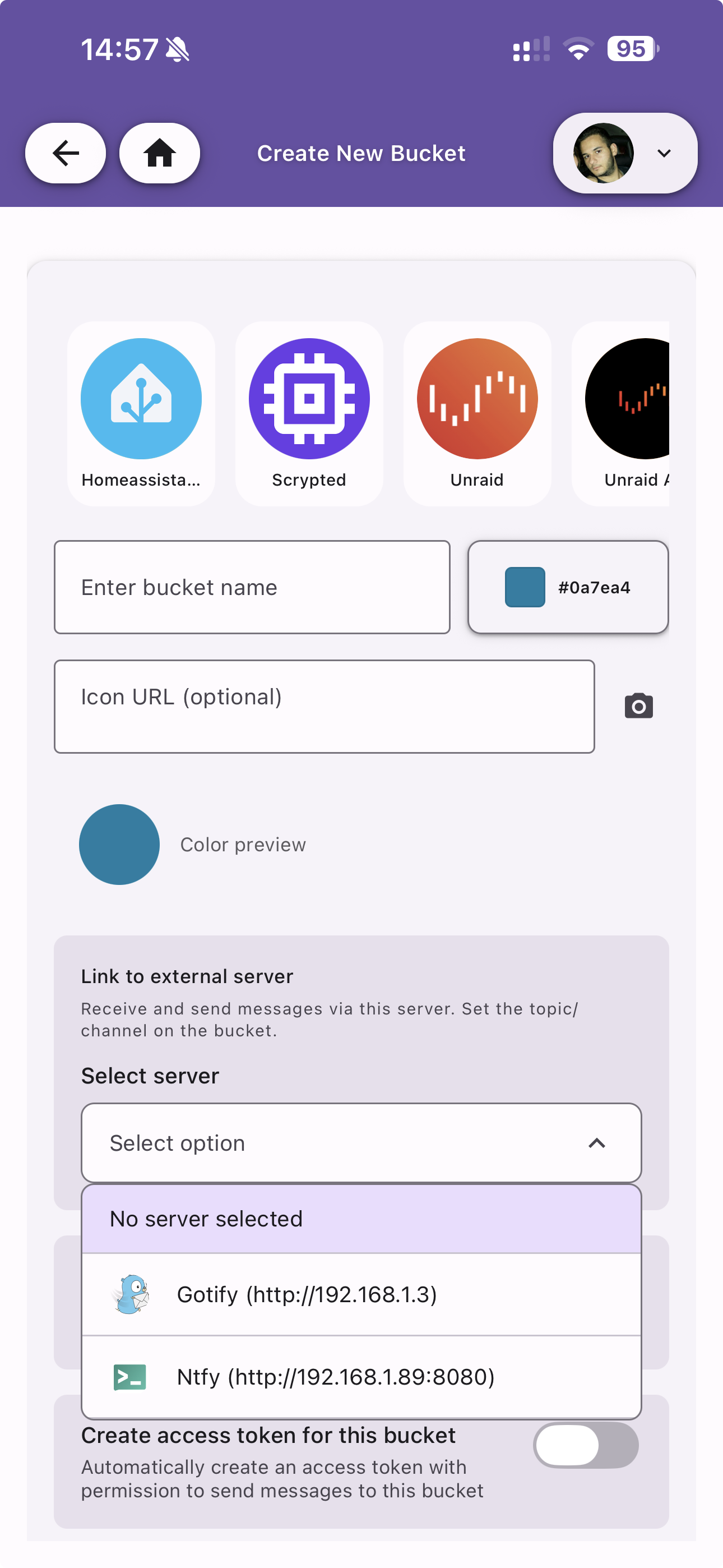
Create a new bucket by configuring the following fields:
| Field | Description |
|---|---|
| Bucket name | A unique name to identify the bucket |
| External Server | Optionally link the bucket to an external notification server (Ntfy, Gotify). Only available for self-hosted instances |
| Icon | Choose an icon for the bucket (see Icon Editor below) |
| Color | Pick a color for the bucket icon background |
Edit Bucket
Once created, a bucket can be fully configured with the following sections.
Magic Code
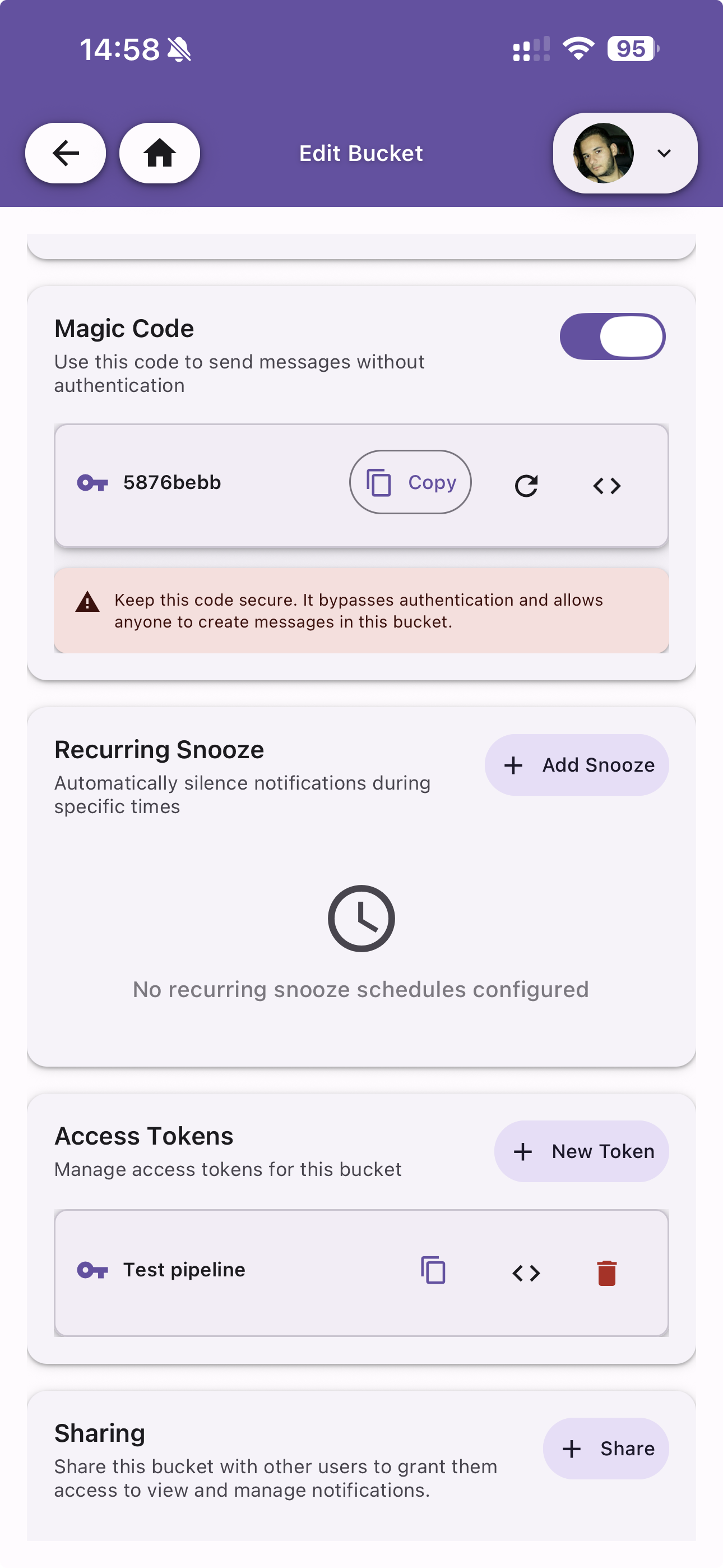
A unique code that allows external systems to send notifications to this bucket without authentication. The magic code is shown and can be copied or regenerated.
Recurring Snooze
Schedule automatic snooze periods for the bucket. During snoozed times, notifications are silenced.
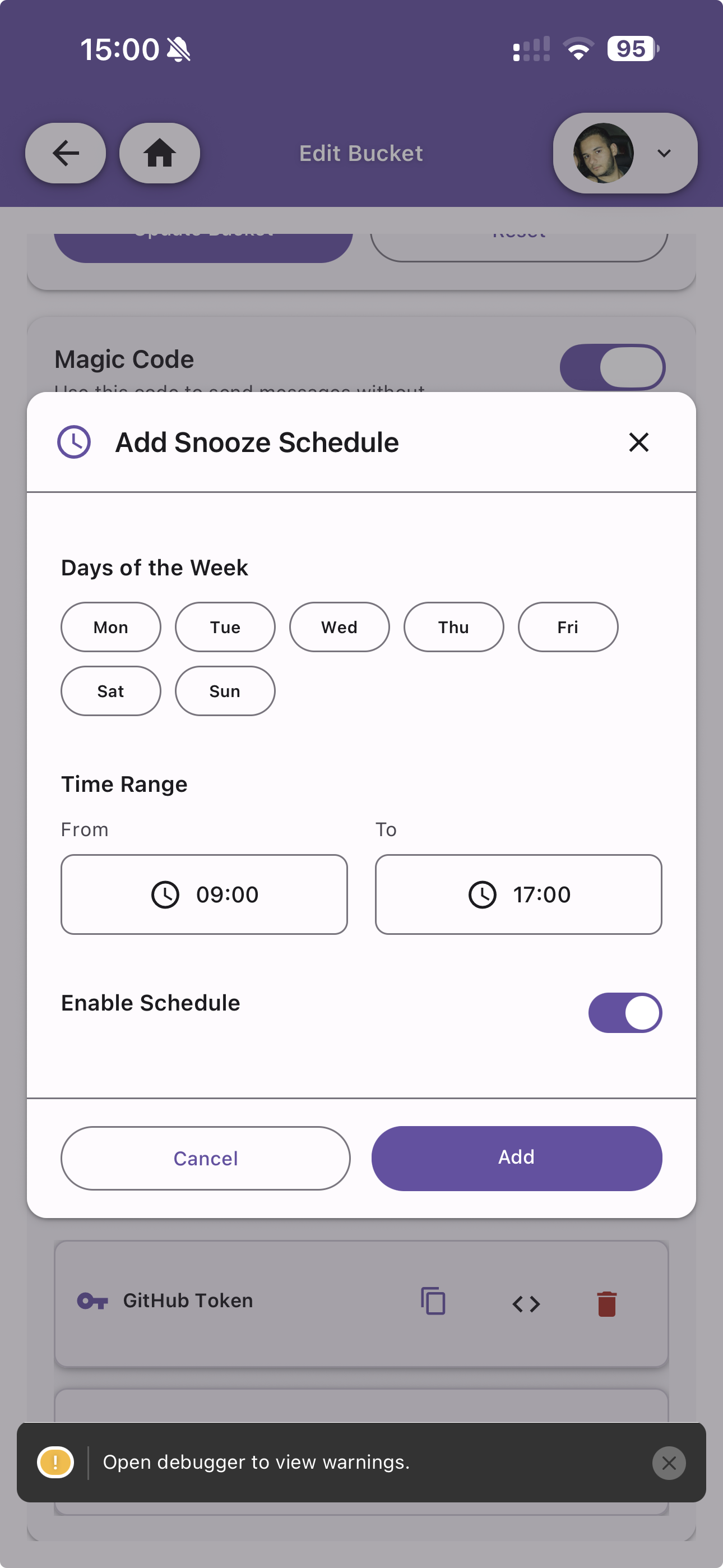
Configure each snooze schedule with:
| Field | Description |
|---|---|
| Days of week | Select which days the snooze applies (Mon–Sun) |
| From / To | Time range during which notifications are snoozed |
| Enabled | Toggle the schedule on or off |
Access Tokens
View and manage System Access Tokens associated with this bucket. Tokens allow programmatic API access scoped to the bucket.
API Examples
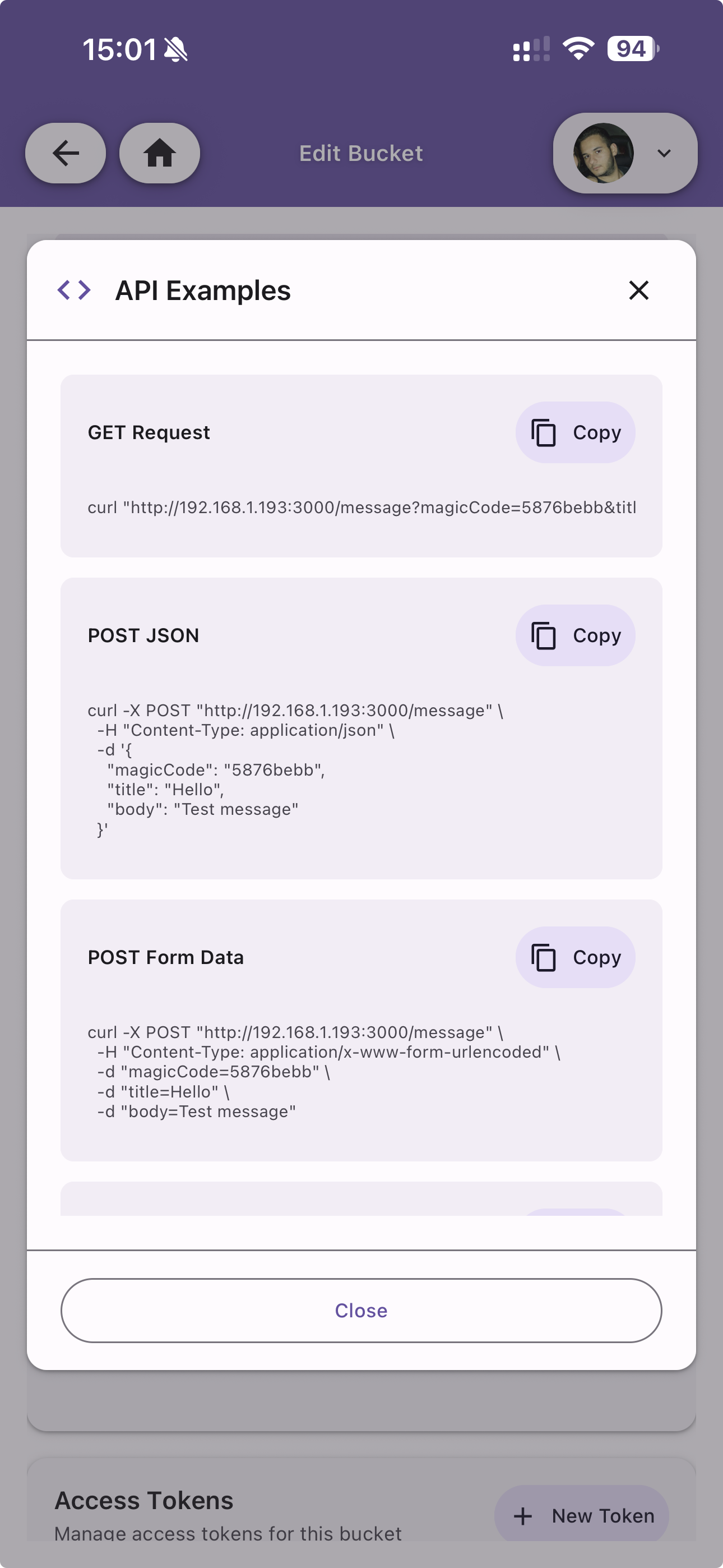
View ready-to-use API call examples for the bucket in multiple formats:
- GET — Simple URL-based notification
- POST (JSON) — JSON payload with title, body, and optional fields
- POST (Form Data) — Multipart form data with file attachment support
Each example includes a Copy button for quick clipboard access.
Sharing
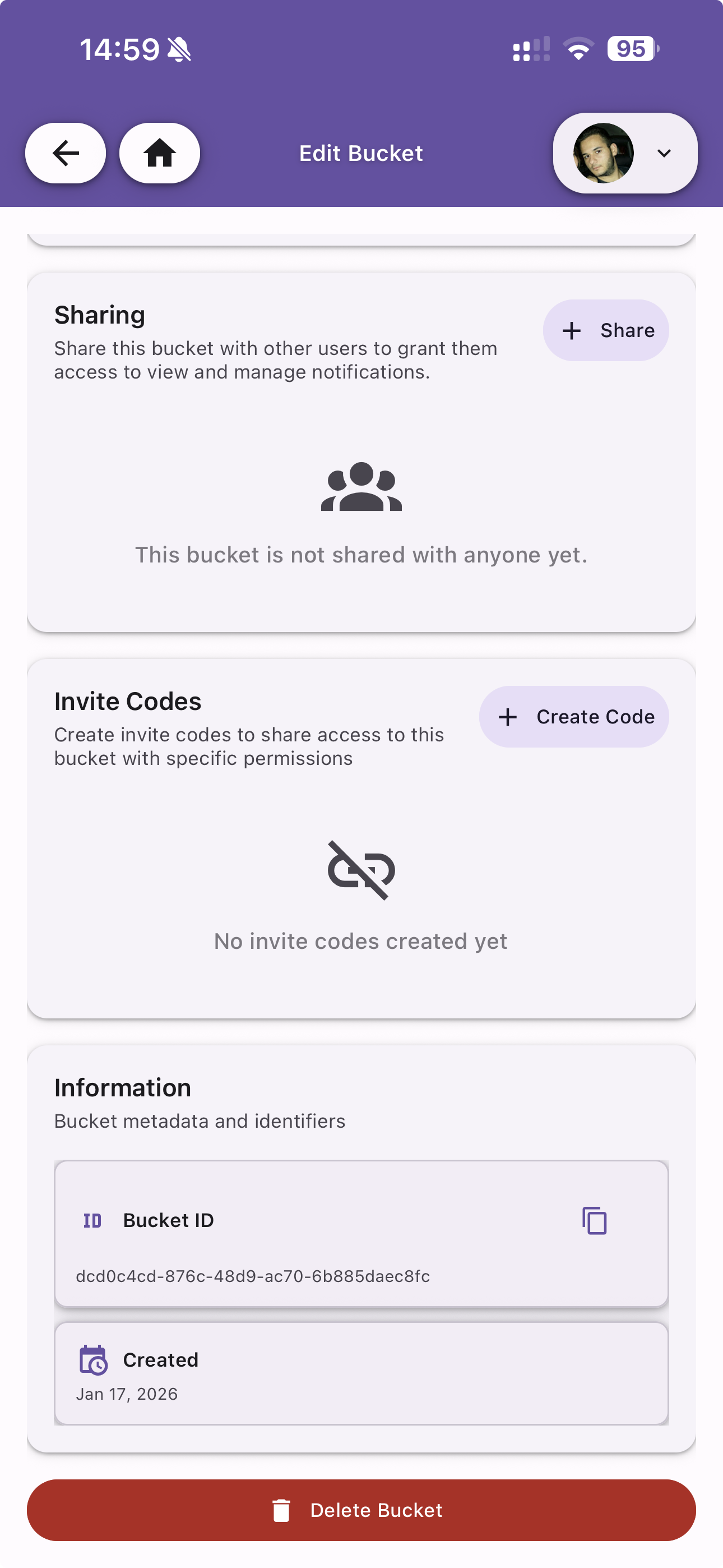
Share the bucket with other users or generate invite codes.
Direct Sharing
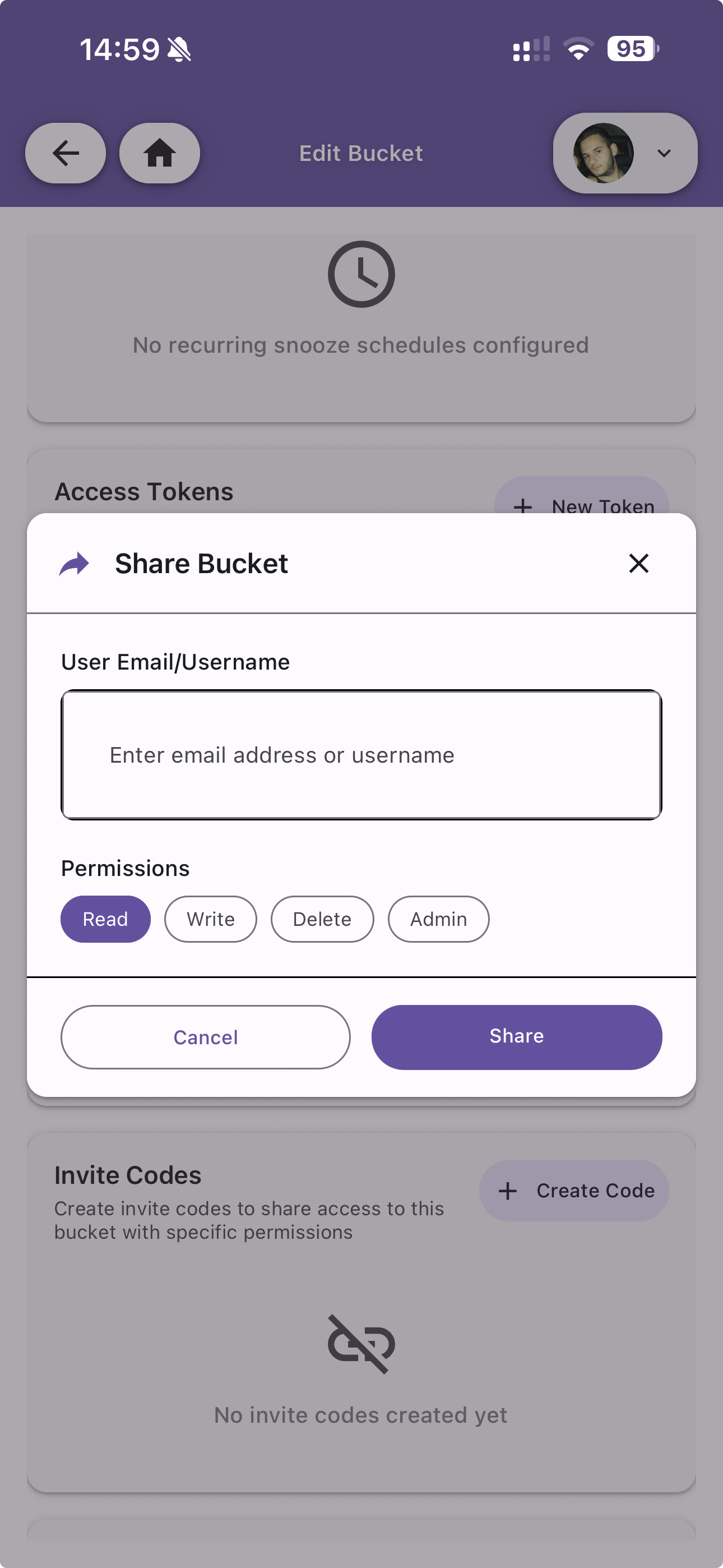
Share a bucket directly with a user by entering their email or username and assigning a permission level:
| Permission | Description |
|---|---|
| Read | Can view notifications in the bucket |
| Write | Can send notifications to the bucket |
| Delete | Can delete notifications from the bucket |
| Admin | Full control including sharing and bucket configuration |
Invite Codes
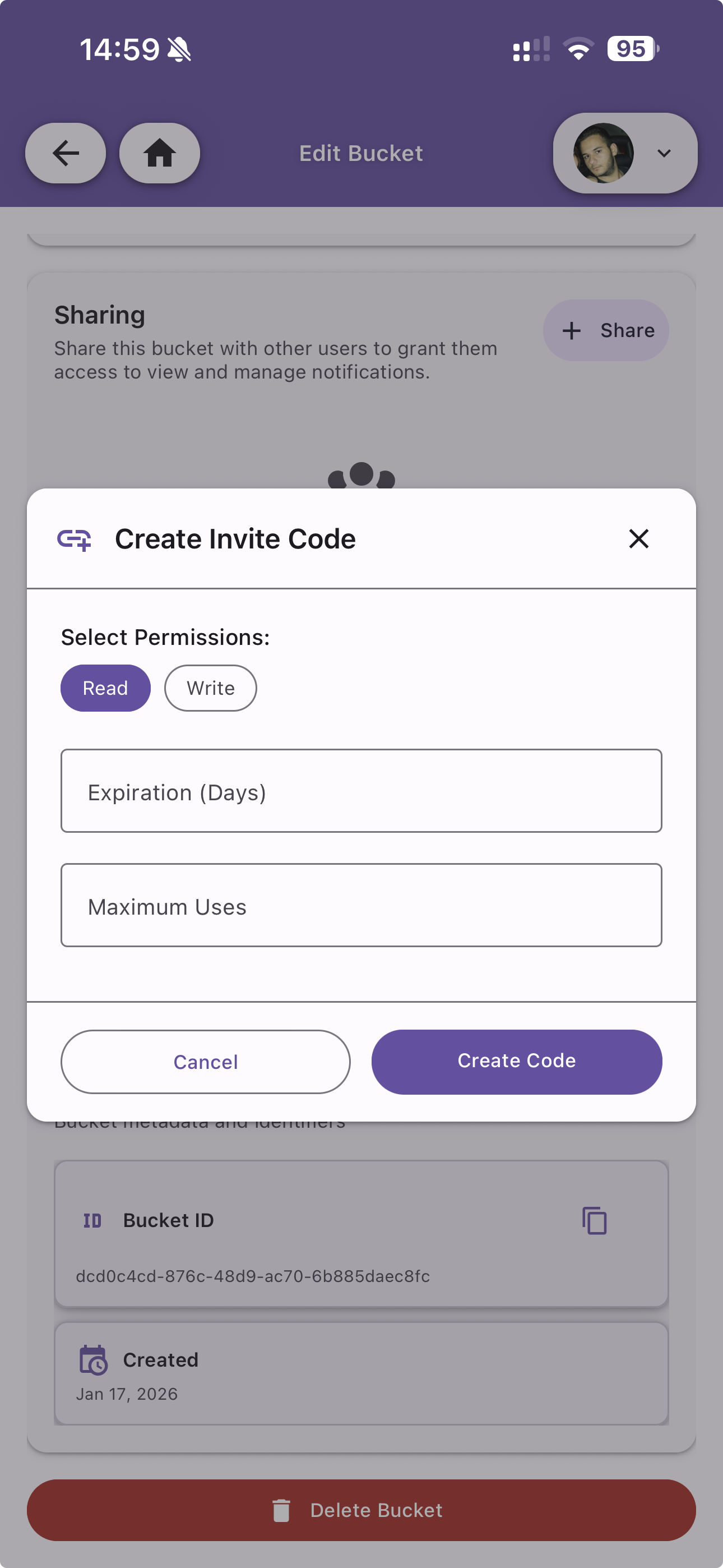
Generate invite codes that other users can redeem to join the bucket. Each code can be configured with:
| Field | Description |
|---|---|
| Permission | The permission level granted to users who redeem the code |
| Expiration | Optional expiration date for the code |
| Max uses | Maximum number of times the code can be redeemed (leave empty for unlimited) |
Active invite codes are listed with their current usage count and can be deleted.
Information
View bucket metadata:
- Bucket ID — The unique identifier for API usage
- Created — When the bucket was created
Delete Bucket
Permanently delete the bucket and all its associated notifications. This action cannot be undone.
Icon Editor
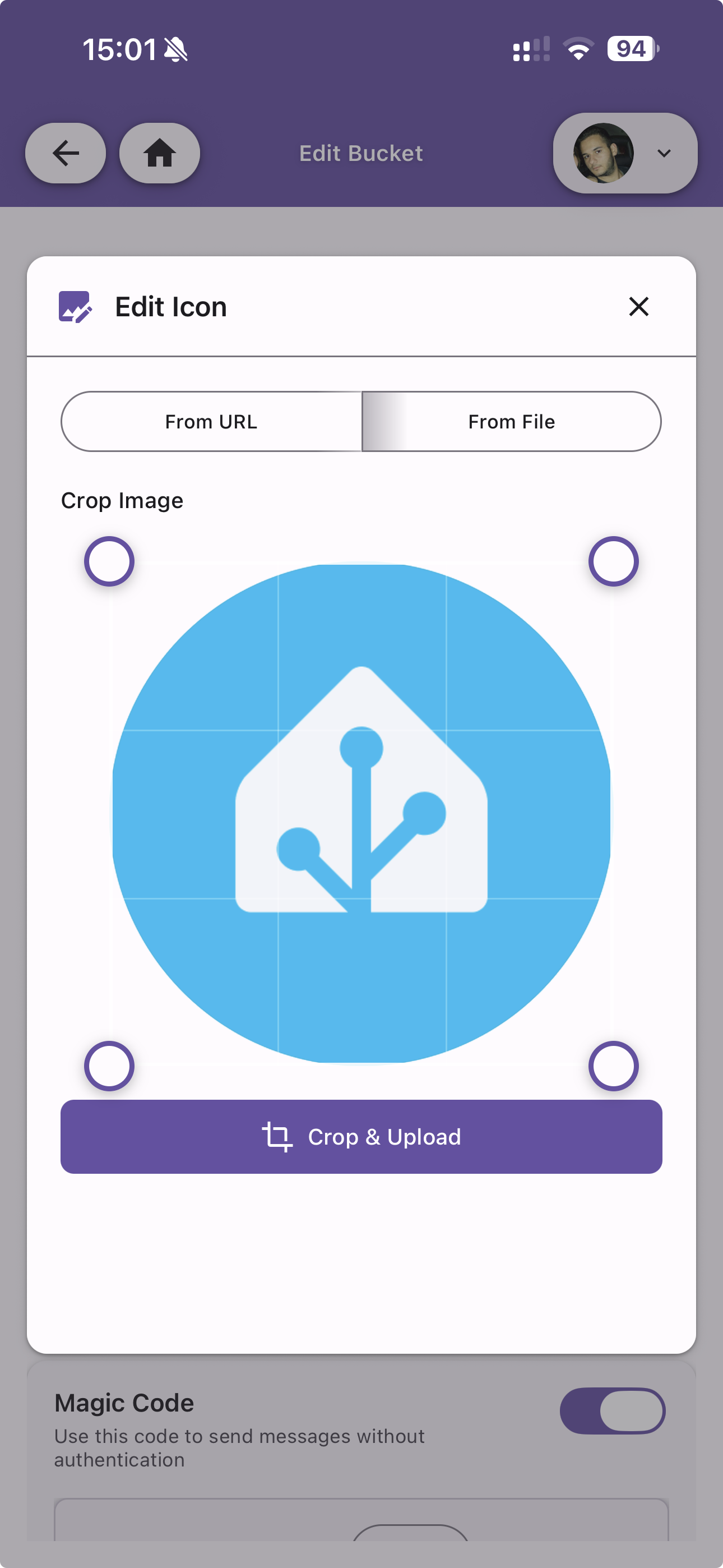
Customize the bucket icon by uploading an image from a URL or file. The editor provides a crop tool to adjust the image before saving.