Unraid
Zentik notification agent for Unraid
Unraid Integration
Zentik is currently available as a notification agent for Unraid through a Pull Request that can be installed manually. Once merged, Zentik will be available as a built-in notification agent in Unraid's Settings.
Overview
The Zentik notification agent for Unraid allows you to send alerts and notifications from your Unraid server directly to your Zentik-connected devices. This integration enables you to receive server alerts, array health notifications, and other system events through Zentik's rich notification system.
Status
The Zentik notification agent is currently available as Pull Request #2490 in the Unraid webGUI repository. While the PR is being reviewed, you can test the integration by installing the preview plugin manually.
PR Link: unraid/webgui#2490 - New notification agent: Zentik notifier agent
Installation
Manual Installation (Preview Plugin)
Since the integration is currently in PR status, you can install it manually using the preview plugin:
- Open your Unraid web interface
- Go to Plugins → Install Plugin
- Paste the following URL in the "Install Plugin" field:
https://preview.dl.unraid.net/pr-plugins/pr-2490/webgui-pr-2490.plg - Click Install and wait for the installation to complete
- You may need to refresh your browser or restart the webGUI for the changes to take effect
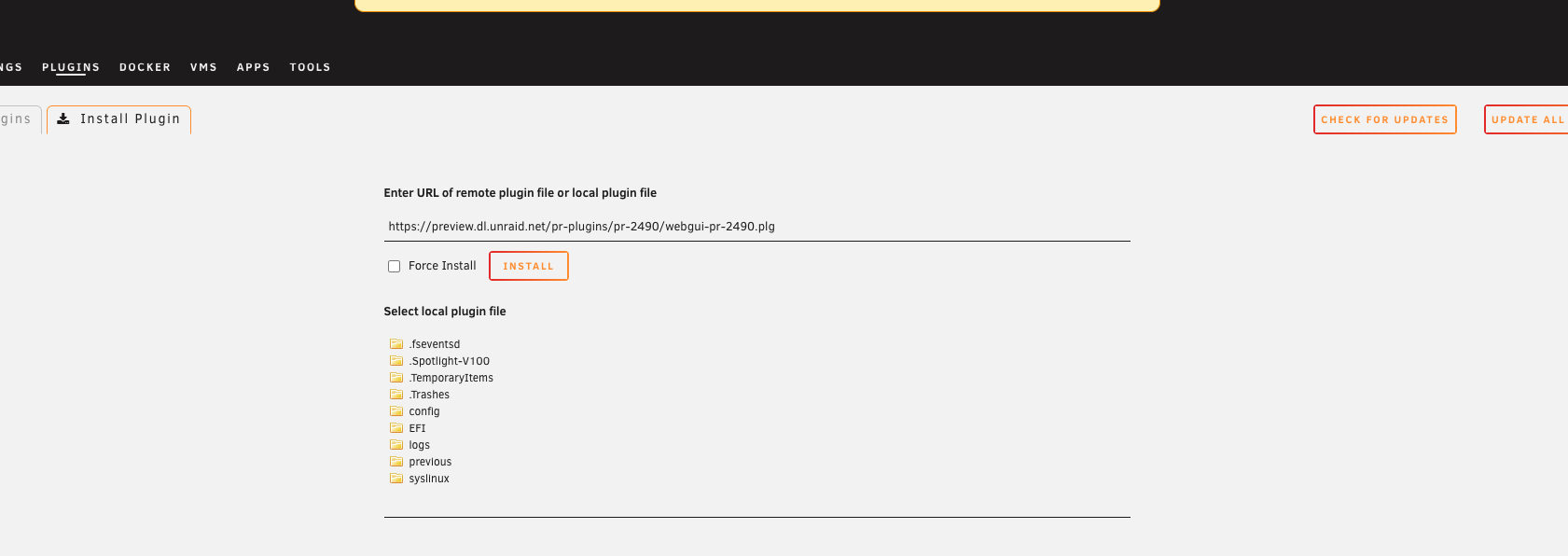
Installing the Zentik preview plugin in Unraid
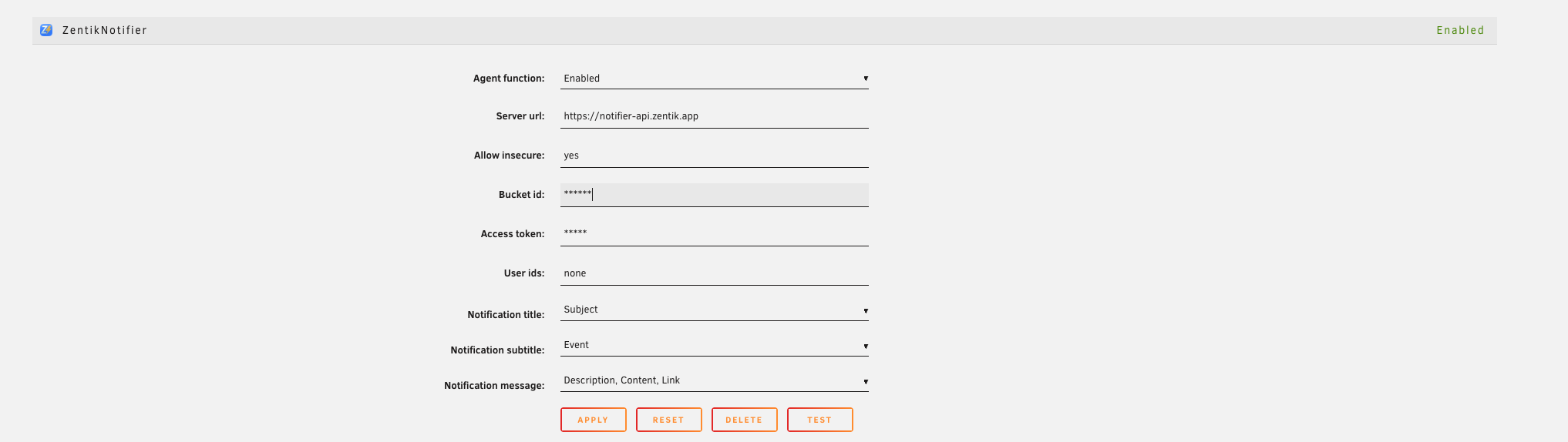
Configuring Zentik notification agent in Unraid settings
Important Notes
⚠️ Warning: This is a preview/test plugin for PR #2490. Remove this plugin before applying production Unraid updates to avoid conflicts.
The plugin includes a warning banner in the Unraid interface to remind you that modified GUI files are installed. You can uninstall the plugin at any time using the banner link, which will restore all original files.
Configuration
Once the plugin is installed, configure Zentik as a notification agent:
- Go to Settings → Notification Settings
- Select Zentik Notifier from the notification agents list
- Fill in the configuration fields:
- Server URL: Your Zentik API endpoint (defaults to
https://notifier-api.zentik.app/messages) - Bucket ID: Your Zentik bucket ID
- Access Token: Your Zentik access token for the bucket
- Title (optional): Default title prefix for notifications
- Subtitle (optional): Default subtitle for notifications
- Delivery Priority Mapping (optional): Map Unraid notification priorities to Zentik delivery types
- Server URL: Your Zentik API endpoint (defaults to
Authentication
The Zentik agent uses Bucket ID and Access Token for authentication. You can obtain these from your Zentik dashboard:
- Create a bucket in Zentik
- Generate an access token for the bucket
- Copy both the Bucket ID and Access Token
- Paste them into the Unraid notification settings
Usage
Once configured, Zentik will automatically receive notifications from Unraid for:
- Array Health: Disk failures, SMART warnings, temperature alerts
- System Events: System reboots, shutdowns, updates
- Docker Events: Container start/stop events
- VM Events: Virtual machine state changes
- Custom Notifications: Any custom notification triggers you configure
Notifications will be delivered to all devices connected to your Zentik bucket with the configured delivery priority settings.
Features
- Rich Notifications: Receive detailed alerts with titles, subtitles, and message content
- Priority Mapping: Map Unraid notification priorities to Zentik delivery types
- Custom Server URL: Support for self-hosted Zentik instances
- Reliable Delivery: Direct integration with Unraid's notification system
Troubleshooting
Notifications Not Received
- Verify your Bucket ID and Access Token are correct
- Check that the Server URL is accessible from your Unraid server
- Ensure your Zentik bucket is active and has valid credentials
- Check the Unraid system logs for any connection errors
Plugin Installation Issues
- Make sure you're running Unraid 7.1.0 or later (minimum version required)
- Try refreshing the webGUI after installation
- If issues persist, you may need to reboot the server
Removing the Preview Plugin
To remove the preview plugin and restore original files:
- Look for the warning banner at the top of the Unraid interface
- Click the "Click here to uninstall" link in the banner
- Confirm the uninstallation
- The original files will be restored automatically
Alternatively, you can remove it via the Plugins page.
Future Availability
Once PR #2490 is merged into the main Unraid webGUI repository, Zentik will be available as a standard notification agent that can be selected directly from the notification settings without requiring manual plugin installation.
Resources
- PR: unraid/webgui#2490
- Preview Plugin URL:
https://preview.dl.unraid.net/pr-plugins/pr-2490/webgui-pr-2490.plg - Zentik Documentation: See Notifications for more details about notification features
- Unraid Forums: Check the Unraid forums for community discussions and support